


How to Trade Stocks | Gate
This article outlines the complete trading process for Gate Stocks, explains the differences between order types, trading hours, and quote sources. Before you begin, please make sure you meet the platform's access requirements (including identity verification and regional restrictions) and have updated your app to the latest version.
1. Trading Process
From funding your account to order settlement, you can complete a trade by following these steps.
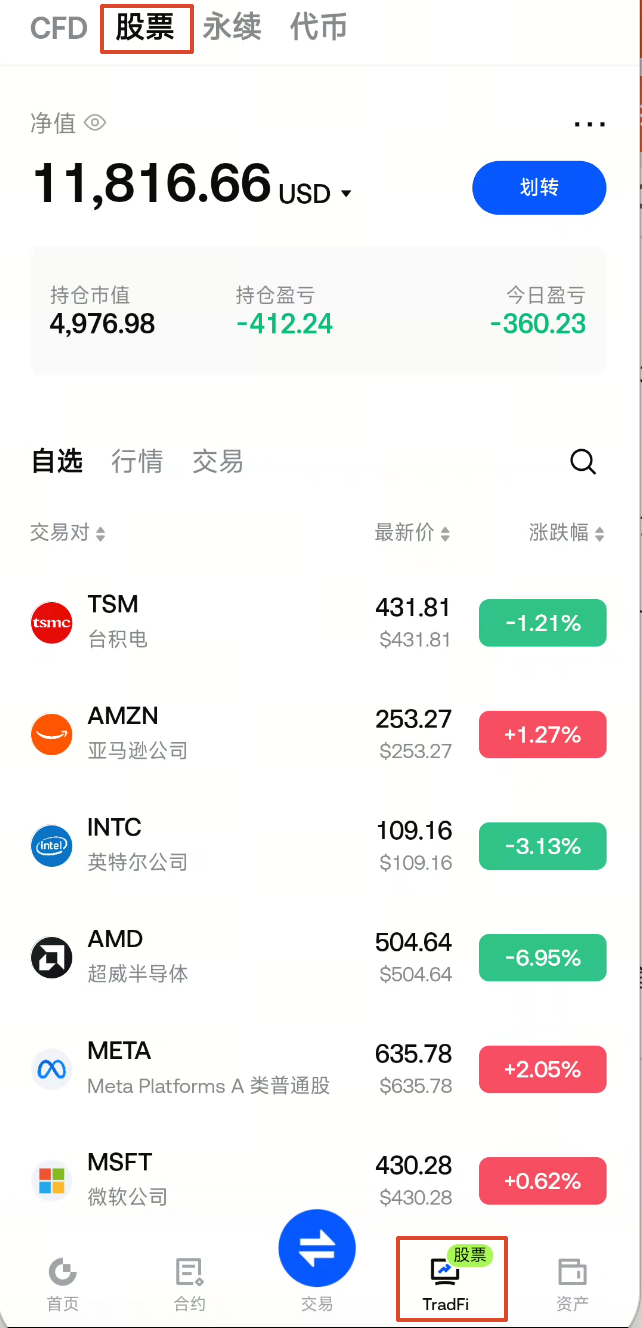
1. Enter Stocks
You can access stocks through the following entry points (paths may differ, but the functions are the same):
- Bottom navigation TradFi → select Stocks
- Market selector → TradFi → Stocks
- Homepage Market → TradFi → Stocks
- Search by ticker symbol or name
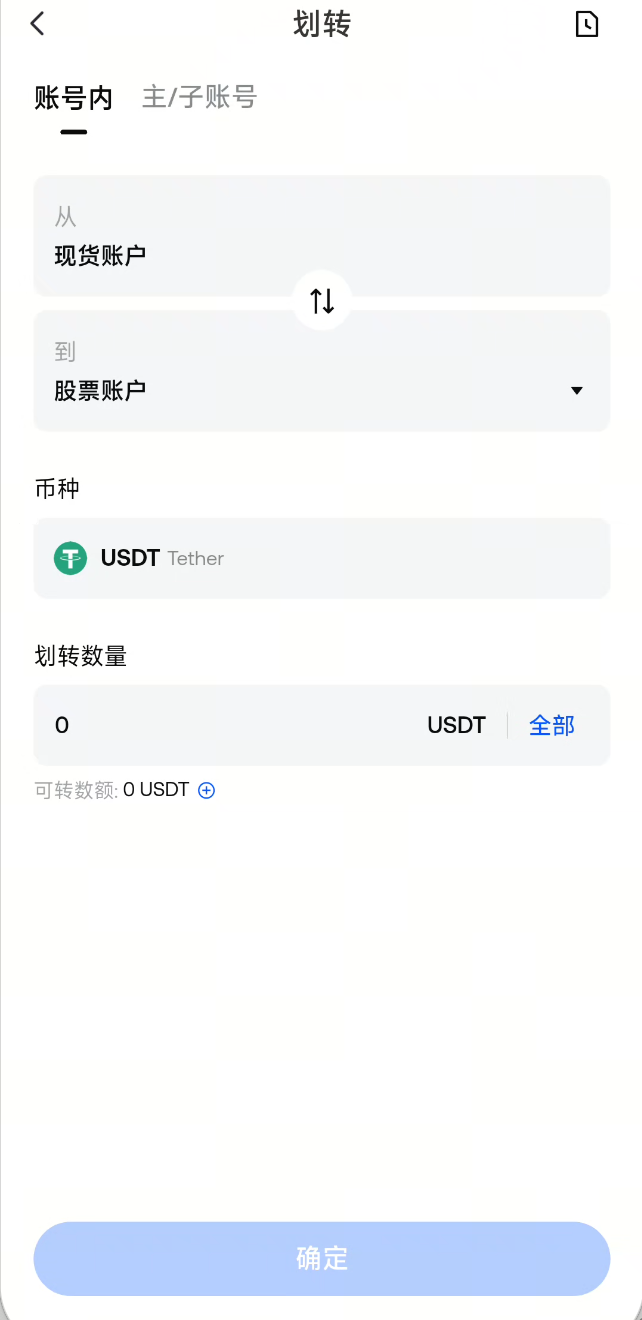
2. Prepare Funds
Transfer USDT from your Spot Account or Unified Account to your Stock Account.
- If you haven’t transferred funds to your Stock Account: you can browse market data, but cannot place valid buy orders.
- The available funds for buying are based on your Stock Account available balance.
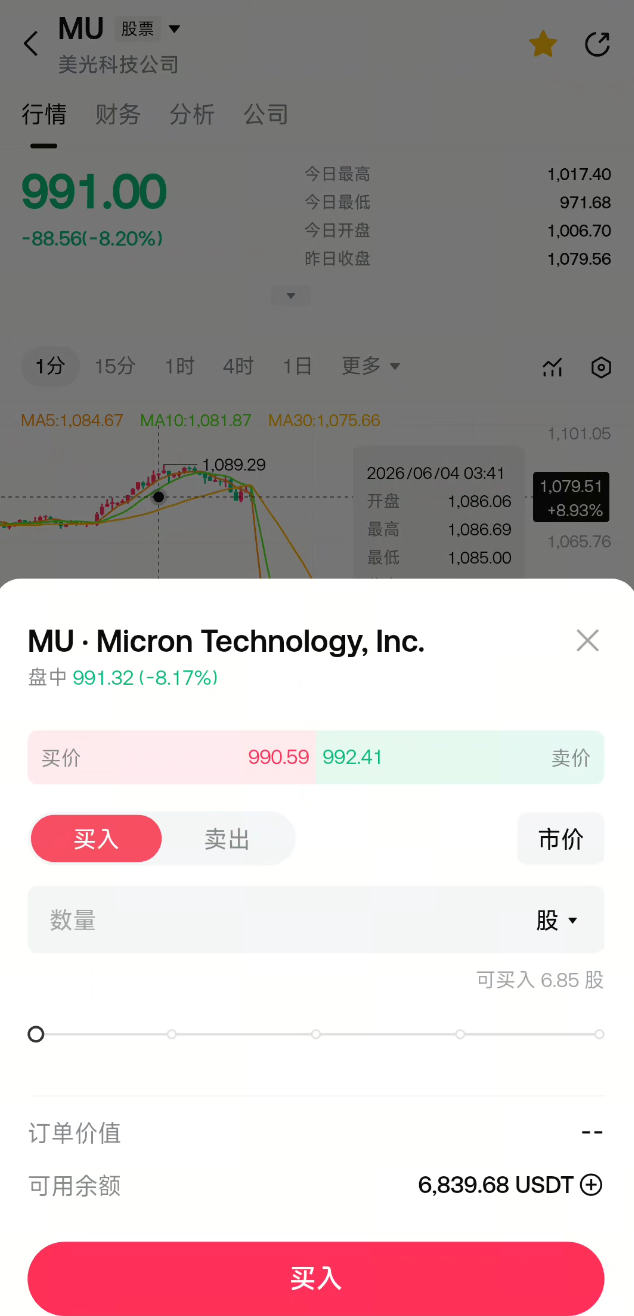
3. Select a Stock and Place an Order (During Market Hours Only)
Open the candlestick (K-line) page for your target stock:
- Use the bottom trading button to select Buy or Sell
- The default is a market order: quickly execute at the best available price on the opposite side.
- The actual execution price may differ from what you see when placing the order due to slippage or network delays.
- Enter the quantity (you can switch between shares or USDT value)
- Review the order parameters and submit your order
Selling existing positions can also be done in Positions via Close Position or Market Close All (both are market sell orders).
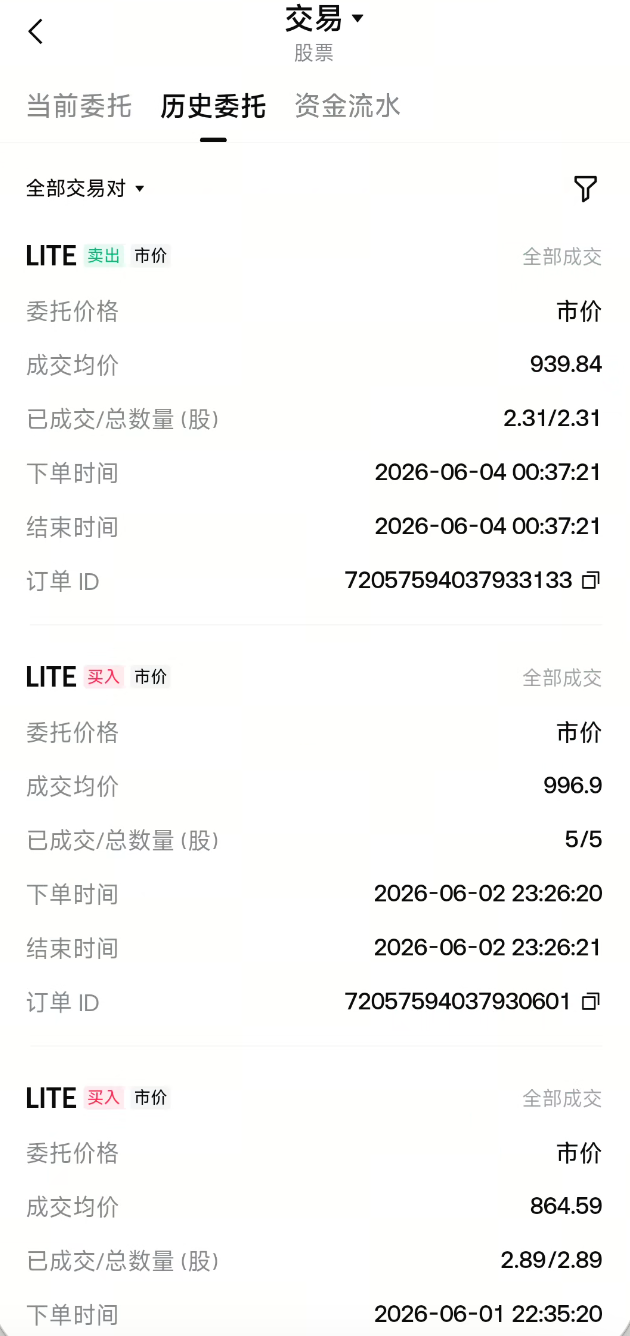
4. View Orders and Executions
| Where to View | Purpose |
|---|---|
| Orders | View ongoing orders |
| Positions | View number of shares held, cost, P&L |
| Trade History | View current orders, past orders, and fund flows |
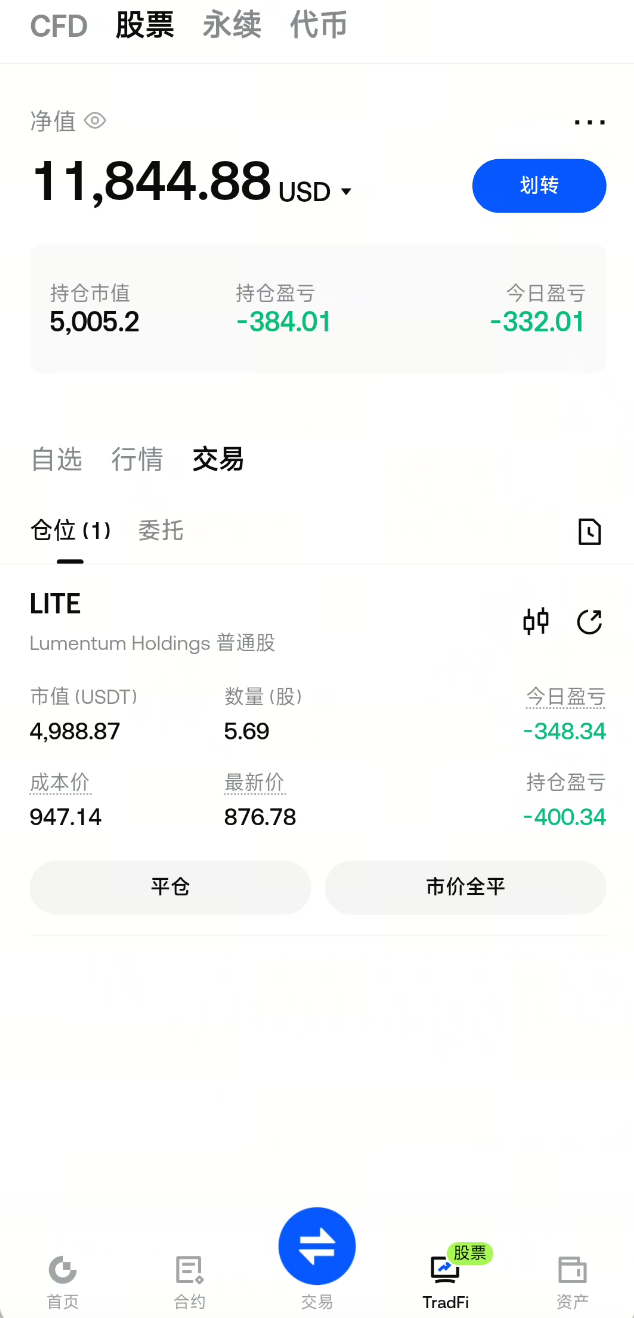
5. Holding and Subsequent Actions
- After execution, buying increases your shareholdings and reduces your available balance; selling decreases your holdings and returns funds to your available balance.
- As the market fluctuates, position P&L, daily P&L, and net asset value will update accordingly.
- Corporate actions (such as dividends or stock splits) require no manual action; the platform will allocate them proportionally based on your holdings. You can view these in the fund flow page.
Process Overview
Transfer USDT to Stock Account → Select a stock during market hours → Submit a market order → Execution → View positions in "Positions" / Manage orders in "Orders" → Check results in "Trade History"2. Differences Between Order Types
Currently, Gate Stocks only supports market orders. Take-profit/stop-loss, trigger orders, and limit orders are not available.
| Comparison | Market Order |
|---|---|
| Suitable for | Wanting to buy or sell as quickly as possible at the current executable price |
| Execution method | Executes as soon as possible at the best available price on the platform after submission |
| Required fields | Number of shares or amount, buy/sell direction |
| Validity period | Valid for the day, executed during market hours; some stocks support pre-market + regular + after-hours trading |
| If not executed | Any unfilled portion is automatically canceled before the market closes for the day |
In Simple Terms
- Market Order: "Buy/Sell Now"—complete the trade as quickly as possible at the available price shown by the platform at the time of submission.
About Closing Positions
- Close Position: Sell your existing holdings; you can specify the quantity (default is to close all).
- Market Close All: Sell all currently available shares with one click.
Closing a position is processed as a market sell, consistent with the sell operation on the trading page.
Currently Not Supported
- Short selling (margin trading), margin buying
- Take-profit/stop-loss orders
- Placing new orders during off-hours or pending orders that activate automatically at market open
3. Trading Hours
Order Placement Times
- Typically, you can place new orders (buy, sell, close positions) during US market regular trading hours; some popular stocks support pre-market, regular, and after-hours trading.
- Trading hours align with the Eastern US market's pre-market, regular, and after-hours sessions; holiday closures follow US stock market rules. Please refer to the page for exact market open/close times.
During Market Closure
The market list, search results, and candlestick (K-line) pages will display a “Closed” label, and the Buy/Sell buttons will be unavailable.
| Status | Can Place New Orders? | Can View? |
|---|---|---|
| Regular Trading | Yes | Market, Positions, Orders, History |
| Pre-market, After-hours | Some stocks | Market, Positions, Orders, History |
| Closed | No | Market, Positions, Orders, History |
Notes:
- You cannot submit new orders during market closure; you can still view market data and prepare funds, then place orders after the market opens.
- Currently, some stocks support independent pre-market and after-hours orders; off-hours pending orders are not supported.
Market Data Display and Trading Hours
- The latest price and change shown in lists and candlestick charts update in real time during market hours.
- If the data source does not provide pre-market or after-hours prices, some P&L displays may be calculated based on the latest regular session price.
4. Quote Sources
Source of Latest Trade Price
- The latest price, change, candlestick charts, etc., displayed on the page are sourced from US stock market data integrated by the platform. The data is consistent with traditional brokers and US exchanges, ensuring fair stock valuations.
Source of Order Book Quotes
- Market orders are executed at the buy/sell quotes provided by the platform.
- The platform's quotes may be better or worse than the National Best Bid and Offer (NBBO).
- In extremely volatile markets, the actual execution price may differ from the "order book price" seen before placing the order; if not fully executed immediately, please check your order status in Orders.
5. Trading Settings and Records
In Settings, you can adjust options such as:
- Whether to require a second confirmation before placing an order
- Order unit (by shares / by USDT value)
- Cost basis calculation (average cost, diluted cost)
Trade History allows you to view:
- Current Orders / Order History
- Fund Flows (including deposits, withdrawals, buys, sells, fees, dividends, etc.)
Disclaimer
The content provided herein is for reference and educational purposes only and does not constitute any financial, investment, trading, or legal advice, nor does it constitute an offer or solicitation to buy or sell any digital assets. Gate makes no express or implied representations or warranties regarding the accuracy, completeness, or timeliness of the information contained herein. Product features, interfaces, rules, and fee structures may be updated or adjusted at any time. Please refer to the latest announcements and the actual information displayed on the Gate platform for the most accurate details.
Digital asset investments involve significant risk, and prices may fluctuate substantially. You may lose the entire amount of your investment. Please make decisions cautiously based on your own financial situation and risk tolerance after fully understanding the associated risks. If necessary, you are advised to consult an independent professional financial or legal advisor.
For more information about potential risks, please refer to Gate's Risk Disclosure and User Agreement.
